CAD compatibility for real pattern rooms
TL;DR: FashionINSTA seamlessly integrates with your existing pattern room by exporting production-ready .DXF and .RUL files. This guide details supported CAD software like CLO3D and Gerber, the correct AAMA/ASTM import settings, and troubleshooting steps for common scaling or grading issues.
FashionINSTA exports production-ready .DXF pattern assets designed to open directly in the apparel CAD tools your pattern room already uses. This documentation covers which tools are supported, how to import DXF outputs correctly (including grading rule tables), what a one-way vs. round-trip workflow looks like in practice, and how to troubleshoot common import failures.
Prerequisites: You need a FashionINSTA account with Pattern Generator access, and a licensed installation of your target CAD tool. For graded multi-size exports, you'll also need the companion .RUL file delivered alongside the .DXF.
Supported CAD tools
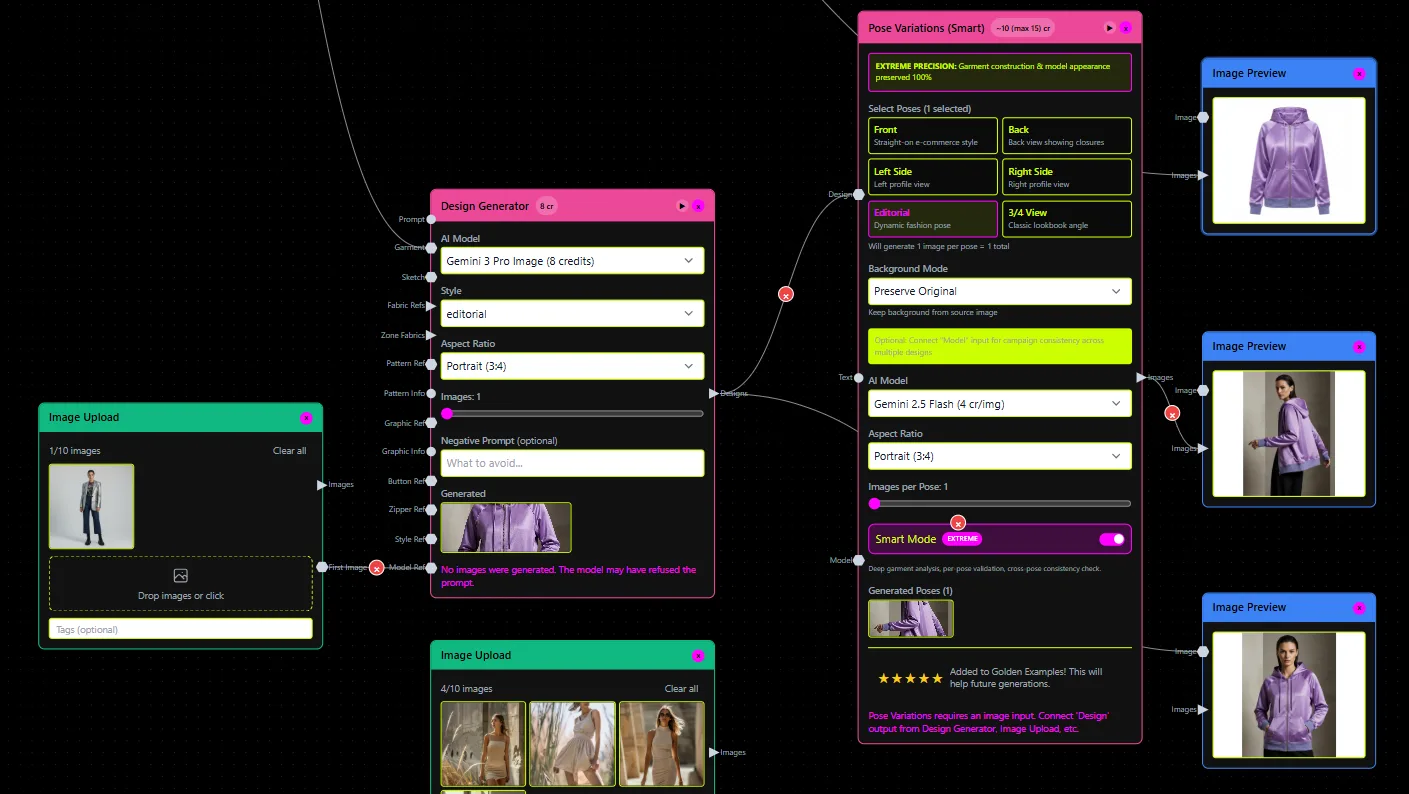
FashionINSTA's pattern outputs are explicitly tested to open in the following apparel CAD tools:
| CAD tool | DXF import supported | Grading (.RUL) | Notes |
|---|---|---|---|
| CLO3D | Yes | Yes | Use File > Import > DXF (AAMA/ASTM) |
| Style3D | Yes | Refer to Style3D docs | Use AAMA/ASTM import option |
| Gerber | Yes | Yes | Standard apparel DXF workflow |
| Lectra | Yes | Yes | Standard apparel DXF workflow |
| Tukatech | Yes | Refer to Tukatech docs | Standard apparel DXF workflow |
| Marvelous Designer | Yes | Not applicable | Import DXF via file menu |
| VStitcher (Browzwear) | Yes | Yes | DXF AAMA and DXF ASTM formats supported |
FashionINSTA states that its outputs "open cleanly in CLO3D, Style3D, Tukatech, Gerber, Lectra, Marvelous Designer, VStitcher," and the Enterprise PoC scope explicitly includes "DXF for CLO3D, Gerber, Browzwear, Lectra."
Version compatibility note: FashionINSTA does not publish a version-by-version compatibility matrix. Validate exports against your specific CAD build before rolling out to production workflows. If you encounter a version-specific failure, contact FashionINSTA support with your CAD tool name and version number.
File formats and DXF import settings
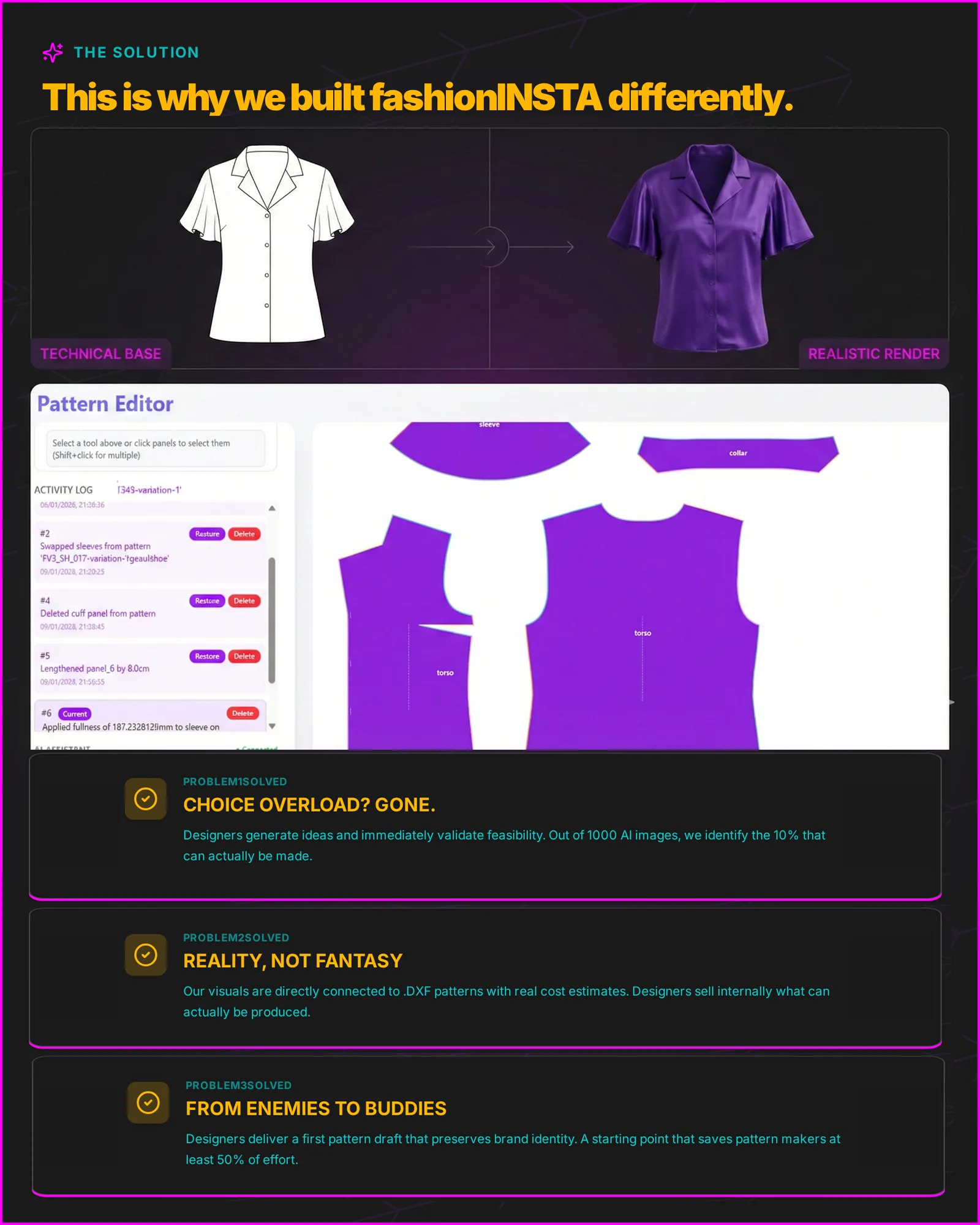
Primary export: .DXF
All FashionINSTA pattern outputs are delivered as .DXF files containing garment pattern geometry. The DXF export is designed to work with any apparel CAD software, though the correct import option in your CAD tool's dialog must be selected for clean results.
For apparel-specific geometry (seam lines, grain lines, notches), choose the AAMA/ASTM DXF import option where available. Generic CAD DXF imports can misinterpret apparel-specific entities.
Grading: companion .RUL files
For multi-size graded exports, FashionINSTA delivers a .RUL grading rule table alongside the .DXF. Two critical conventions apply:
- The
.RULfile must be in the same folder as the.DXFfile. - The
.RULfile must have the exact same filename as the.DXF(differing only in extension).
CLO3D's grading import behavior confirms this: if the DXF and .rul files share the same folder and exact filename, CLO3D loads the grading rules automatically when you import the DXF. Browzwear VStitcher similarly supports DXF AAMA and DXF ASTM formats with an accompanying RUL table for grading.
CLO3D import path
Per the CLO3D Help Center, the correct import path is:
Main Menu > File > Import > DXF (AAMA/ASTM)
Do not use a generic DXF import option if an AAMA/ASTM-specific one is available in your version.
One-way vs. round-trip workflows
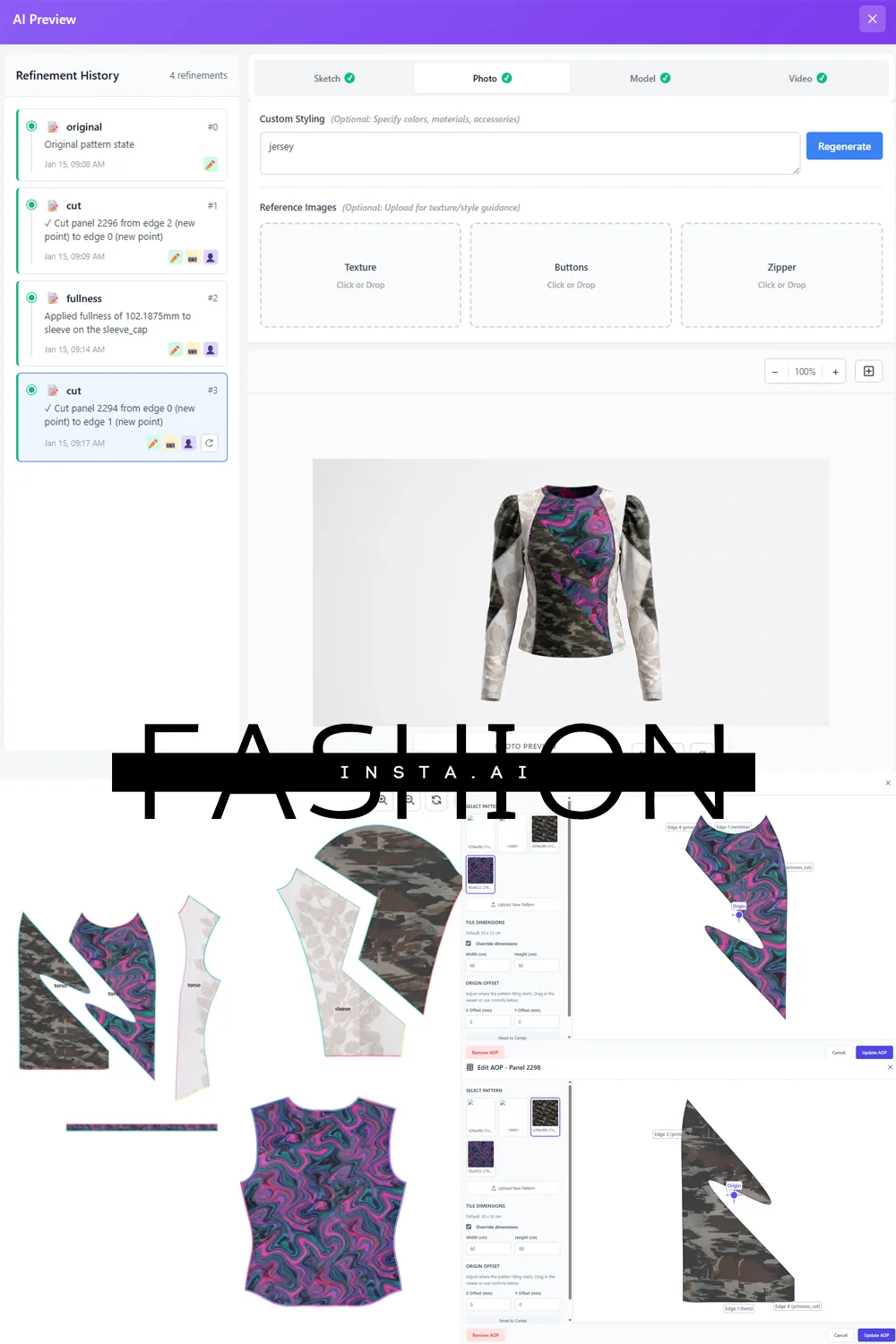
One-way workflow (standard)
The standard FashionINSTA CAD integration is a one-way export:
- Generate pattern in FashionINSTA (Pattern Generator node)
- Download
.DXF(and.RULif graded) - Import into your CAD tool using the AAMA/ASTM import path
- Review, clean up, and edit pieces in your CAD environment
- Hand off to grading, tech pack, or cutting file workflows as normal
This is the documented and supported path for all plan tiers.
Round-trip considerations
FashionINSTA does not document automatic re-ingestion of CAD-edited DXF geometry back into its Pattern Intelligence pipeline. If you need a modified pattern to re-enter a FashionINSTA workflow (for example, to regenerate a tech pack or cost estimate after a TD revision), the practical path is:
- Re-export the edited pattern from your CAD tool as a DXF
- Re-upload or re-reference that DXF within the relevant FashionINSTA node
Enterprise users on the Fashion Complete OS tier have access to "API in & out" connectivity, which enables system-level integration between FashionINSTA workflows and external platforms. For teams that need a tighter programmatic loop between CAD edits and FashionINSTA outputs, this API path is the correct starting point. Contact FashionINSTA support to scope that integration before building against it.
Units, scale, and layer conventions
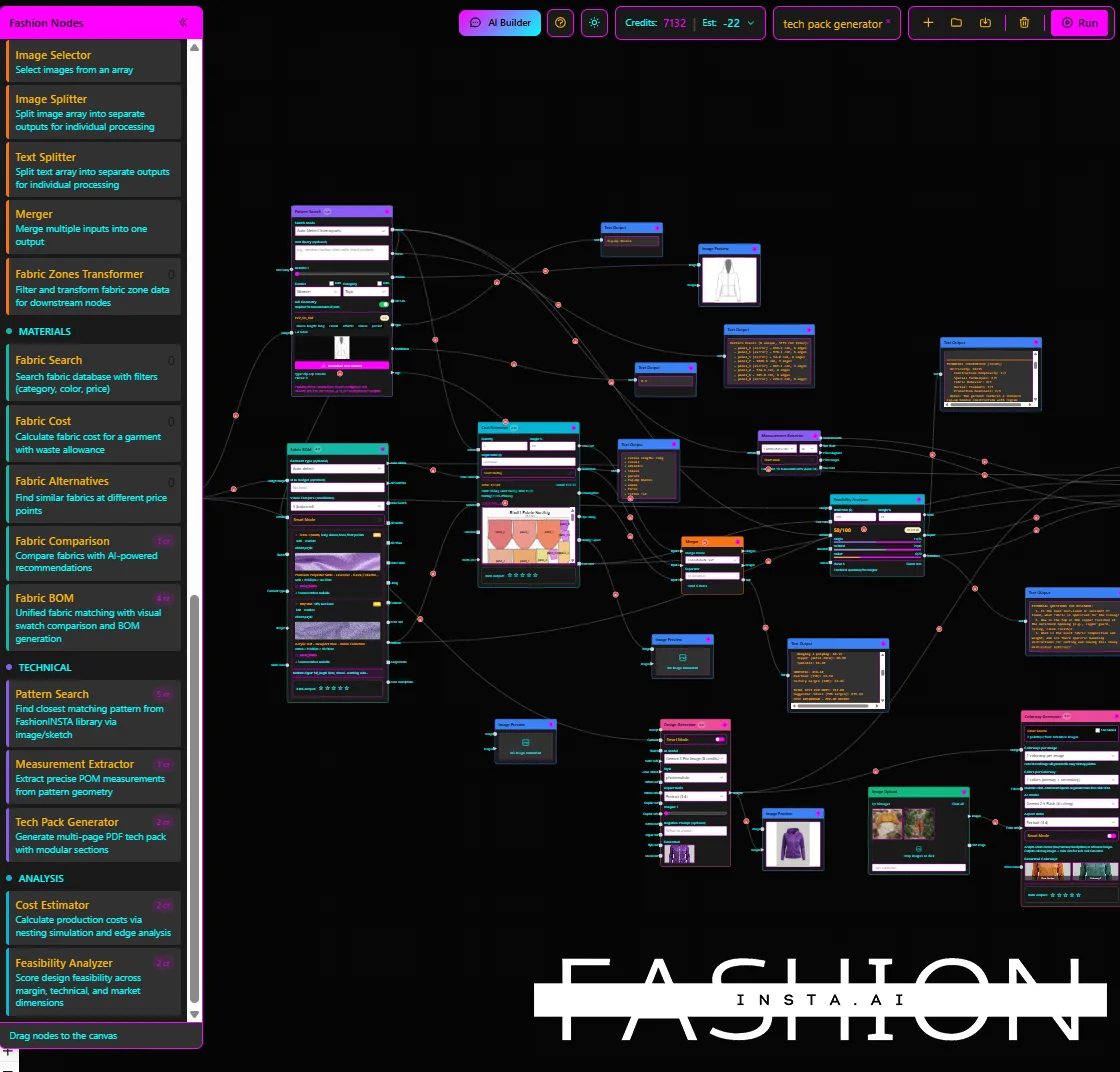
Getting units wrong is the most common cause of import failures. A mismatch between the DXF's internal units and the unit setting selected in your CAD import dialog typically produces patterns that are 10x, 100x, or 1000x the correct size, or fractional slivers.
When importing FashionINSTA DXF outputs:
- Select the unit that matches the DXF's native unit in the import dialog (millimeters for metric pattern files; inches if the file was generated in imperial)
- If pieces appear at the wrong scale, undo the import, confirm the unit setting, and reimport
- CLO3D's DXF import dialog includes a unit selector; do not skip it
Layer conventions in apparel DXF follow AAMA/ASTM standards. If your CAD tool displays unexpected geometry or misses seam allowance lines, verify that you selected the AAMA/ASTM import mode rather than a generic AutoCAD DXF mode.
FAQ
Pieces appear deformed or lines are disconnected after import. Select the AAMA/ASTM import option in your CAD tool rather than a standard DXF import. Generic DXF importers may misinterpret apparel-specific entities such as notches, grain lines, and curved seams.
Sizes are missing after import; only the base size appears.
The .RUL grading file is either missing, in a different folder from the .DXF, or named differently. Confirm both files are in the same directory and share an identical filename before the extension. Then reimport.
Pattern is 1000x too large or too small. The import dialog unit setting does not match the DXF's native units. Undo, reopen the import dialog, and select the correct unit (mm vs. inches).
I need a specific layer naming convention or curve tolerance for our cutting room. FashionINSTA's standard DXF export covers the named CAD tools above. For custom layer mapping, curve closure tolerances, or proprietary naming conventions used by your cutting system, contact FashionINSTA support directly. For enterprise teams with a unique CAD setup, a scoped pilot on one product category with defined acceptance criteria is the recommended approach before full rollout.
Can FashionINSTA connect to CLO3D or other tools via API rather than file exchange? The "API in & out" capability available on the Fashion Complete OS plan enables programmatic integration between FashionINSTA workflows and external systems. For a file-based DXF workflow, no API is needed: download the DXF and import it directly. For automated pipeline integrations, contact FashionINSTA to scope the API connection for your specific CAD environment.
Custom integration support
If your pattern room uses CAD conventions not covered by the standard DXF export (specific layer names, non-standard curve representations, proprietary grading formats), contact FashionINSTA support to request an export or import profile review. Provide your CAD tool name, version, and a sample file that illustrates the naming and layer structure your workflow requires.
For enterprise teams evaluating FashionINSTA CAD integration before a full deployment, the Enterprise PoC includes DXF validation for CLO3D, Gerber, Browzwear, and Lectra as part of the scoped pilot. That pilot is the practical way to confirm compatibility with your specific environment before committing to a production rollout.